Botly v2 is here: better quality suggestions, smarter replies, and a big upgrade overall.
Read what's newHow to See Your Tinder Swipe Stats (Swipes, Likes, Streaks, 2026)
Published on July 11, 2026
Read time 4 minutes
By Leo
Tinder shows you almost nothing about your own swiping: no running swipe count, no like total, no record of when you tend to open the app. The Dating Studio extension fills that gap. Its Swipe Stats panel reads your last 90 days of activity and lays it out plainly, so you can finally see it for yourself: total swipes, like rate, active days, your longest streak, the hours you swipe most, and a few honest notes about your taste. Think Spotify Wrapped, minus the confetti.
Most people swipe a lot and have no real idea what their own pattern looks like: how often you say yes, when you tend to open the app, or what quietly makes you tap right. Swipe Stats just shows it back to you. It works for both Tinder and Bumble.
Does Tinder show you your own swipe statistics?
Basically no. Tinder doesn’t give you a personal dashboard of your own swipes, likes, or passes, and it never tells you how many people you’ve swiped on. Swipe Stats works differently: the numbers are collected locally from your own activity as you browse Tinder Web with the extension installed, so they only ever reflect what you actually did, and only while the extension was running.
Tinder keeps plenty of other things out of sight, too. If you’re curious about other people’s profiles rather than your own habits, here’s how to tell how long someone has been on Tinder.
Where to find it
Open the Dating Studio extension’s Options page and look at the top Overview section. Swipe Stats sits right under your account status, as a card titled “Swipe stats.” It only shows up when you’re logged in, and it quietly stays hidden if we can’t load your numbers.
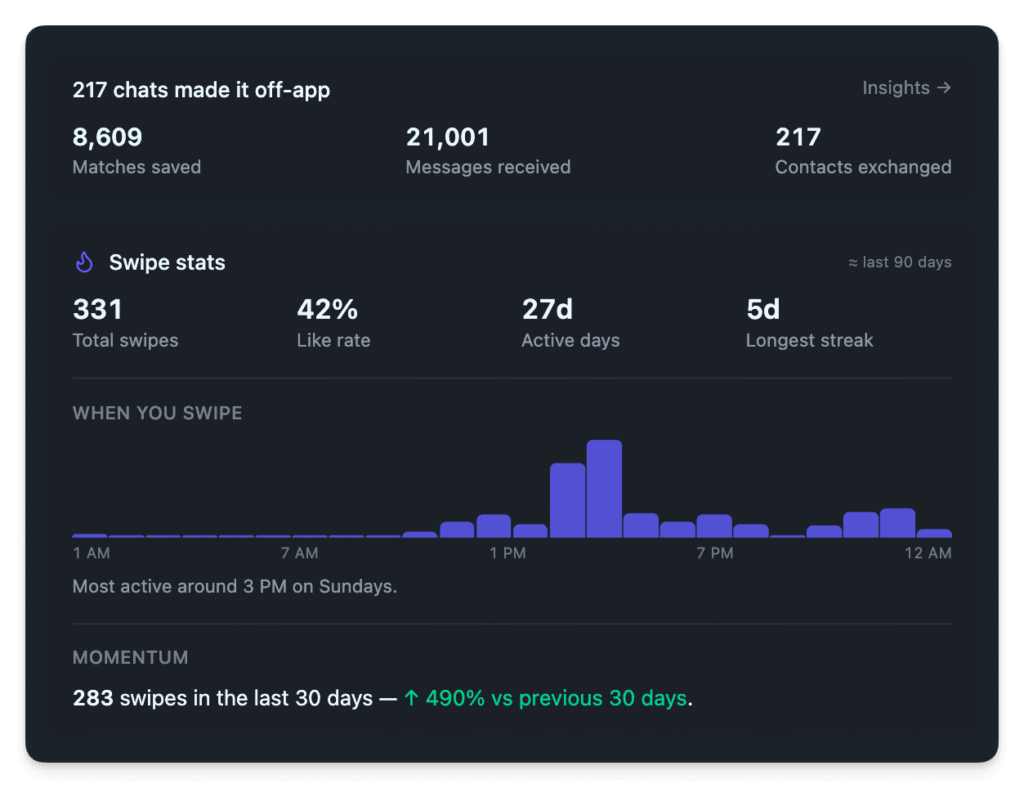
The headline numbers
The first row is four plain tiles:
- Total swipes: how many swipes we’ve recorded in the window.
- Like rate: the share of those swipes that were likes. It’s just likes divided by total swipes, rounded to a whole percent. A low number isn’t bad; it usually just means you’re picky.
- Active days: how many separate days you actually swiped on.
- Longest streak: the longest run of consecutive days you swiped without a gap.
That’s the whole first block. If you’re just getting started, you’ll only see these four while your history builds up.

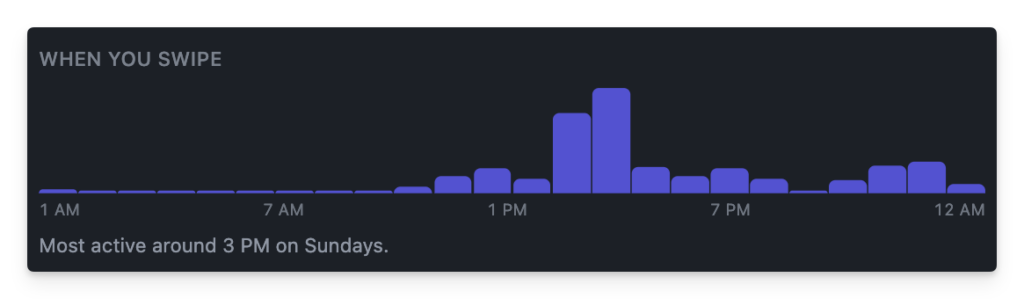
When you swipe
Once there’s enough history, a small bar chart appears showing your swipes by hour of the day, from midnight to 11pm, in your own timezone. Taller bars are busier hours. Under it, a one-line summary calls out your busiest time and day: something like “Most active around 11pm on Sundays.”
It’s a nice gut-check. A lot of people find out they’re mostly a late-night swiper without ever having noticed.
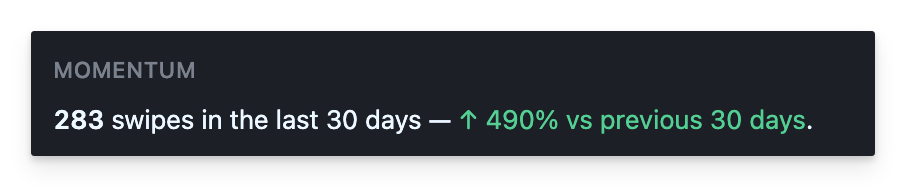
Momentum
This compares your last 30 days to the 30 days before that. It shows your swipe count for the last month and whether you’re up or down against the previous month, as a percentage. If you didn’t swipe at all in the earlier period, it just says “new this month” or “quiet lately” instead of a number.
No judgment here either: it’s only meant to tell you whether your habit is picking up or cooling off.
Your taste
This is the fun part. From the profiles you liked versus passed, we surface up to four honest little observations:
- Bios: whether a written bio actually moves you, with the like rates side by side. Sometimes a bio rewards you; sometimes you barely notice.
- Photos: the average number of photos on profiles you like versus ones you pass.
- Age: the average age of the profiles you like.
- Intent: the relationship intent you like most often (for example, “Long-term partner”).
Each line only appears if there’s data behind it, so you won’t see empty rows.
Good to know
A few honest caveats:
- It only counts swipes made with the extension installed. These numbers come from swipes the extension recorded while you used Tinder or Bumble with it running. It can’t see anything you swiped before you installed it, or anything you swiped on your phone.
- It’s the last 90 days, and it’s approximate. The window is roughly the last three months. The figures are sampled estimates, not an exact ledger: good for spotting patterns, not for counting to the last swipe.
- You need a bit of history first. With no swipes yet, the card just says so. The four headline tiles show up as soon as you have any swipes. The “When you swipe” chart, Momentum, and Your taste unlock once you’ve recorded at least 30 swipes.
- It’s just for you. The card only loads when you’re logged in, and it’s shown on your own Options page: it’s a private read of your own activity.
Swipe Stats FAQ
Does it show swipes from before I installed the extension?
No. Swipe Stats only counts swipes the extension recorded while it was running, so it effectively starts from the moment you install it. It can’t see anything you swiped earlier, or anything you swiped on your phone.
Are the swipe numbers exact?
No. They cover roughly the last 90 days and are sampled estimates, not an exact ledger. They’re good for spotting patterns, not for counting to the last swipe.
Can anyone else see my swipe stats?
No. The card only loads when you’re logged in, and it shows on your own Options page. It’s a private read of your own activity, just for you.
What might come later
The chart already tracks which weekday you swipe most, so a day-of-week view is a natural next step. But we’d rather add things that actually tell you something than pile on charts for their own sake, so we’ll see. For now, Swipe Stats is just a small, honest mirror: open the Options page and have a look.