Botly v2 is here: better quality suggestions, smarter replies, and a big upgrade overall.
Read what's newCan You Schedule Messages on Tinder? Yes, Here’s How (2026)
Published on July 11, 2026
Read time 6 minutes
By Leo
Can you schedule messages on Tinder? Not through Tinder itself. The app has no built-in way to write a message now and send it later, and it has no drafts either. But with a free browser extension you can do exactly that: compose your reply now and have it go out later, while you’re active on Tinder Web.
The reason you’d want this is familiar. You know exactly what you want to say, it’s just the wrong moment to send it. Maybe it’s 2 a.m. and firing off a message now sends the wrong signal, or you’re about to step into a meeting and don’t want to start a conversation you can’t follow up on. Scheduled Replies, part of our browser extension, lets you write the message now and have it go out at a time you choose. If you’re not sure what to write in the first place, our guide on how to use ChatGPT on Tinder pairs well with picking the right moment to send it.
Does Tinder have a built-in way to schedule messages?
No. Tinder has no scheduling feature, and it has no message drafts either, so whatever you type you either send right then or lose. Scheduled Replies fills that gap. It runs on Tinder Web (tinder.com in a desktop browser) with our extension installed, not inside the Tinder phone app.
What it does
You type a message, pick a time, and the message waits in a queue. When the time comes and you happen to have Tinder open, the extension types the message into Tinder’s own chat box and sends it, the same way you would by hand.
That last part matters, so it’s worth saying up front: it only sends while you have Tinder open in a tab. Nothing sends from a server, and nothing sends in the background while your browser is closed. This is a nudge to send at a better time, not an always-on autoresponder.
How to use it
- Open a chat in Tinder with the extension running.
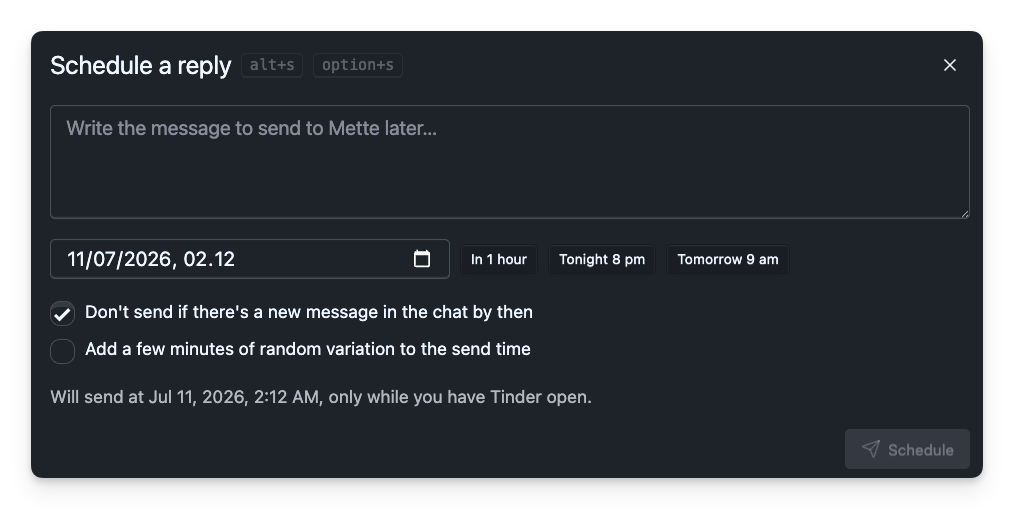
- In the chat actions row (next to “Copy chat”), click Schedule reply. If you already have replies waiting for that chat, you’ll see a small count on the button.
- Type your message in the box.
- Pick a send time. You can use the date-and-time picker, or tap one of the quick presets: In 1 hour, Tonight 8 pm, or Tomorrow 9 am.
- Choose the two options below the time (both explained next).
- Click Schedule. The reply now shows up in the “Scheduled for this chat” list at the bottom of the dialog, marked
pending.
The keyboard shortcut to open the dialog is Alt+S (Option+S on a Mac).
The options explained
Don’t send if there’s a new message in the chat by then. On by default. If anything new lands in the conversation between now and send time, the extension skips the message instead of sending it. “Anything new” means their reply, but also a message you sent yourself in the meantime, since either one usually makes a pre-written line read a little stale. Leave this on unless you really want the message to go out no matter what.
Add a few minutes of random variation to the send time. Off by default. When you turn it on, the extension shifts the actual send time by a few minutes in either direction (roughly three to eight) instead of firing at the exact minute. If you’d rather it go out at precisely the time you picked, leave this off. Note this is a small timing shuffle, not a rewrite: it does not change your wording.
What happens at send time
When your time arrives and Tinder is open and active, a small card appears in the corner: Sending to [name] in 0:30, counting down. You get a 30-second window with two buttons: Abort to call it off, or Send now to skip the wait.
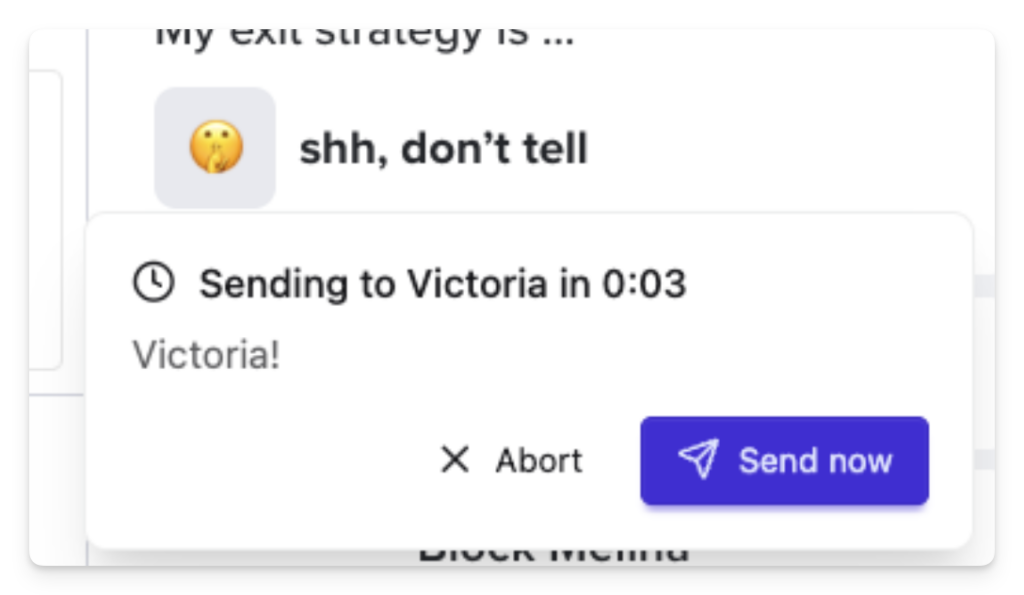
If you do nothing, the countdown finishes and the extension opens the chat, types the message out (word by word, so it looks natural), and sends it. If you touch the keyboard or mouse at any point during the countdown or while it’s typing, it stops immediately and leaves whatever it typed in the box for you. You’re always in charge; the moment you start doing something yourself, the tool steps back.
The countdown only runs while the tab is actually in view. Switch away and it pauses; come back and it picks up where it left off.
Each reply carries a status you can see in the list:
- pending: waiting for its time.
- firing: its turn came up and it’s being handled right now.
- sent: it went out.
- skipped: a rule stopped it (for example, a new message arrived and you’d left that option on).
- aborted: you cancelled it during the countdown.
- expired: its time passed while Tinder wasn’t open, and too long went by to still send it (see below).
- failed: something went wrong on send; the reason shows next to it.
Good to know / limitations
It needs Tinder open. If your scheduled time comes and you don’t have Tinder open and in view, nothing sends at that moment. The reply stays pending and goes out the next time you’re active, as long as that’s reasonably soon.
Old replies expire instead of surprising you. If a scheduled time slips by more than about four hours before you’re next active on Tinder, that reply is marked expired rather than sent. The idea is simple: a reply you wrote for last night probably shouldn’t land tomorrow afternoon out of nowhere. You can still reschedule an expired one from the list.
There’s a gentle pace. To keep things from looking mechanical, scheduled replies go out no more than a handful per day, with a few minutes’ gap between them. If several are due at once, they’ll space themselves out rather than all fire together.
Your scheduled messages live in your browser. The queue is stored locally on your machine (in the extension’s own storage), not on our servers. That’s good for privacy, and it’s also the reason it can only send while your browser and Tinder are open.
Manage the queue any time. From the “Scheduled for this chat” list you can reschedule a reply to a new time, send it at the next opportunity, or cancel it. Sent, aborted, and skipped items can be removed from the list once you’re done with them.
FAQ
Can you schedule messages on the Tinder app (phone)?
No. Scheduling works on Tinder Web in a desktop browser with our extension installed. The Tinder phone app has no scheduling of its own, and the extension doesn’t run there.
Is it an auto-responder or a bot?
No. Nothing sends from a server, and nothing runs while your browser is closed. It only types and sends while you have Tinder open and active, and every send gives you a 30-second countdown you can stop. It’s a nudge to send at a better time, not a bot replying for you.
Does it send if my computer is off or Tinder is closed?
No. It only sends while you have Tinder open and active in a browser tab.
Can I stop a message right as it’s about to go?
Yes. You get a 30-second countdown with an Abort button. Touching the keyboard or mouse also stops it instantly.
Will it still send if they message me first?
Only if you turned off “Don’t send if there’s a new message.” With that option on (the default), a new message in the chat makes it skip.
Does the variation option change my wording?
No. It only nudges the send time by a few minutes. Your message goes out exactly as you wrote it.